After completing this lesson, you'll be able to:
In this lesson, you will:
After completing this lesson, you'll be able to:
In this lesson, you will:
If you're taking a live Safe Software-hosted training course or using an on-demand lab for this course, we've already imported the content for this lesson into your FME Flow.
If you're completing this lesson with your own FME Flow, you must import the starting project with the content into your FME Flow.
See FME Flow Authoring: Instructions to Import the Starting Project for directions to import the project to your own FME Flow.
FME Flow Automations has two Email triggers: SMTP (Simple Mail Transfer Protocol) and IMAP (Internet Message Access Protocol). Both triggers initiate an automation workflow in response to an incoming email, but they differ in how FME Flow receives the message.
The Email - SMTP (received) trigger uses FME Flow's built-in email server to receive incoming emails directly without connection to another email server. The trigger has only two configuration parameters, so it is relatively easy to set up in an automation. However, your FME Flow hostname and domain must resolve to a publicly accessible IP address or DNS record for FME Flow to receive incoming email successfully.
The Email - IMAP (received) trigger indirectly receives emails by connecting to an external email account operating on another server, such as Gmail or Outlook. FME Flow polls the email account at intervals, and the IMAP protocol delivers messages to FME Flow for processing and triggering the automation.
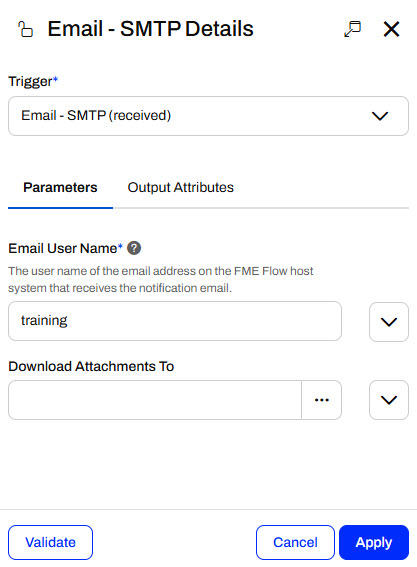
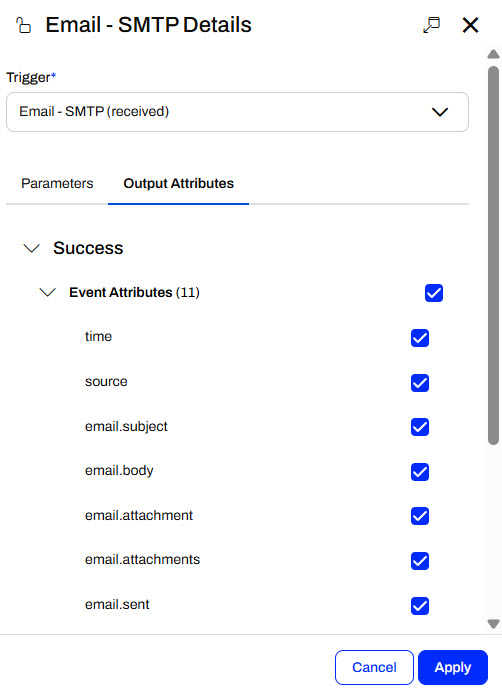
You create an Email—SMTP trigger like any other automations trigger. You set the Trigger to Email—SMTP (received) and fill out the parameters. You must configure an Email User Name and optionally select a location to download any email attachments. If you do not specify a file location for downloading attachments, FME Flow will automatically save them to a temporary location in Resources.
The Email User Name parameter does not need to be an existing user or email. When you add a username, you essentially create an email address on FME Flow's email server, using the hostname as the email domain. In the above image, the Email User Name is "training"; you do not need to specify @FMEFlowHostname.com in the parameter. When you send an email, you would enter training@FMEFlowHostname.com or AuthoringCourse@FMEFlowIPAddress as the email you are sending to.
The Email - IMAP (received) trigger has significantly more configuration parameters than the Email - SMTP trigger. Most of these parameters are for connecting to the IMAP email server and defining the events you would like the Automation to trigger in response to. Unlike the Email - SMTP trigger, which fires immediately when an email is received, the Email - IMAP trigger polls the email account at intervals and sends messages for new or unread emails.
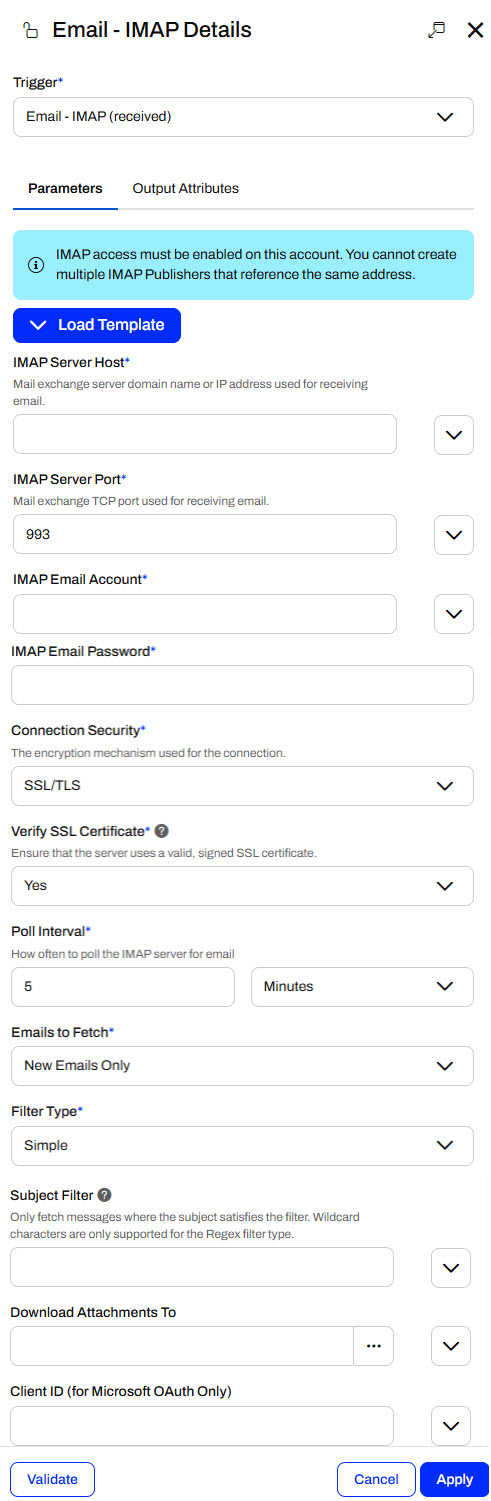
Again, the Download Attachments To parameter is optional. If you leave it blank, FME Flow temporarily stores the attachments in Resources.
Exercise

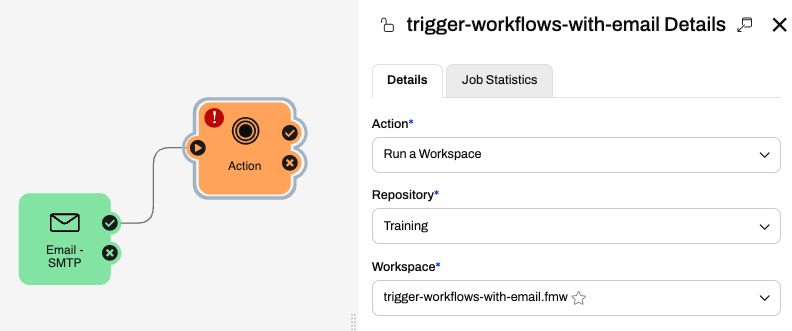
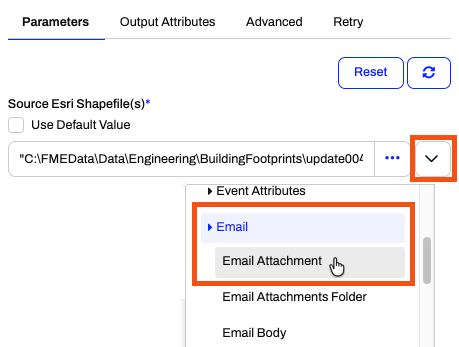
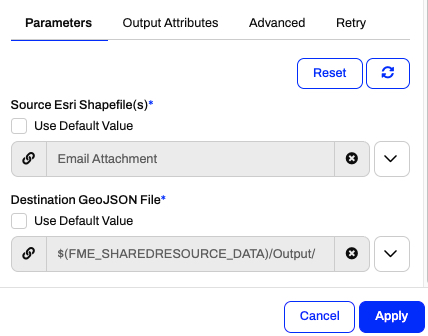
Sven, a planning analyst, regularly receives emails from contractors with building updates. These emails usually include attachments containing spatial data to process. When Sven receives a dataset via email, he immediately downloads it and converts it to GeoJSON so he can reference the geometry easily and consistently.
In this exercise, you will:
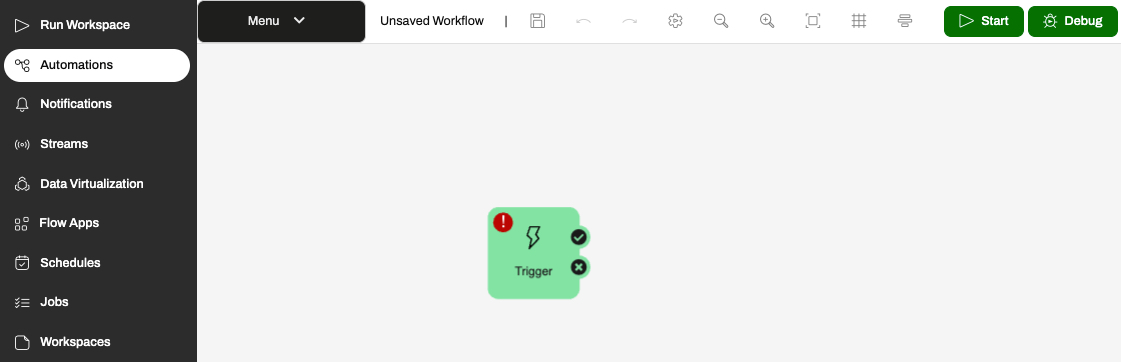
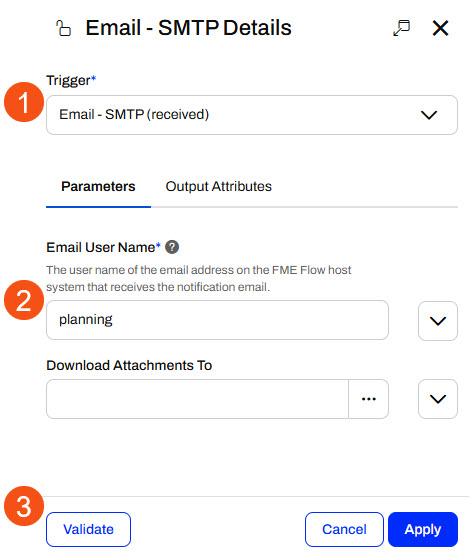
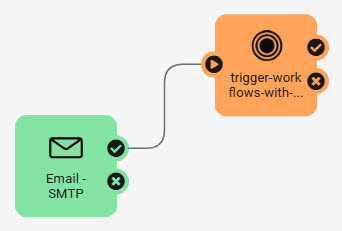
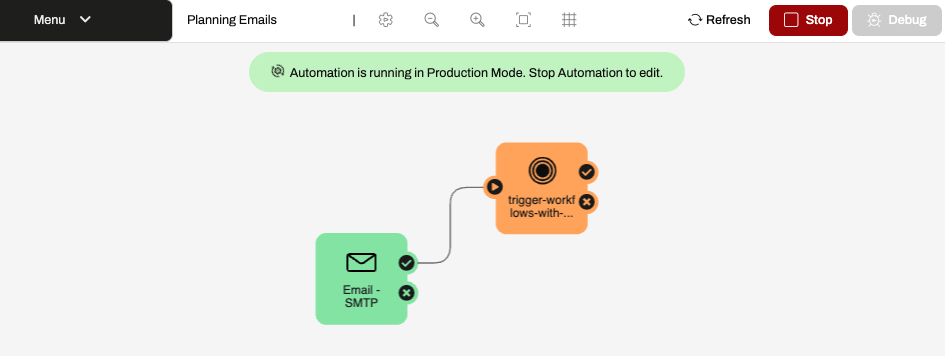
Send a test email to trigger the automation and verify it processes the attachment.
To send the email to FME Flow, you will need to use your own email account such as Gmail or Outlook.
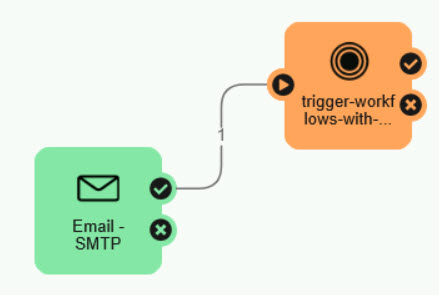
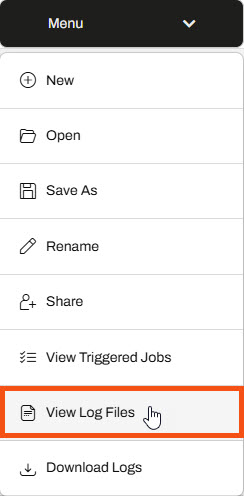
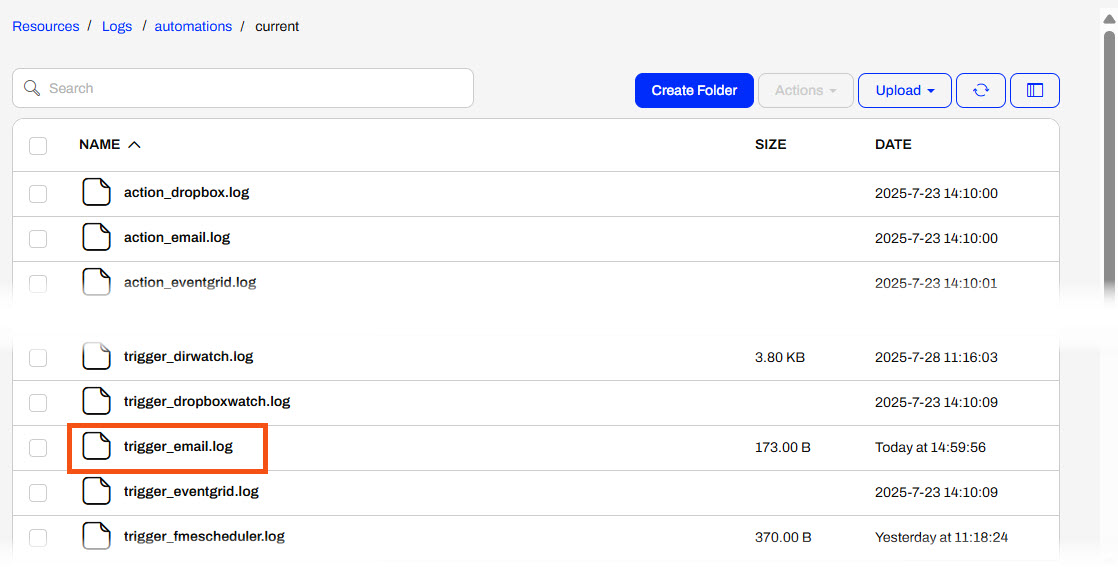

You can optionally view the fme_automations.log file or View Triggered Jobs from the Automations Menu to see the workspace translation, too. You may also navigate to the Resources location with the destination GeoJSON files processed by the workspace.
You've now created an automation that triggers on incoming emails and processes their attachments using a workspace. This automation saves Sven time and effort when processing emails manually and ensures the GeoJSON files remain consistent and up to date.
If you're taking a live Safe Software-hosted training course or using an on-demand lab for this course, we've already imported the content for this lesson into your FME Flow.
If you're completing this lesson with your own FME Flow, you must import the starting project with the content into your FME Flow.
See FME Flow Authoring: Instructions to Import the Starting Project for directions to import the project to your own FME Flow.
FME Flow Automations has two Email triggers: SMTP (Simple Mail Transfer Protocol) and IMAP (Internet Message Access Protocol). Both triggers initiate an automation workflow in response to an incoming email, but they differ in how FME Flow receives the message.
The Email - SMTP (received) trigger uses FME Flow's built-in email server to receive incoming emails directly without connection to another email server. The trigger has only two configuration parameters, so it is relatively easy to set up in an automation. However, your FME Flow hostname and domain must resolve to a publicly accessible IP address or DNS record for FME Flow to receive incoming email successfully.
The Email - IMAP (received) trigger indirectly receives emails by connecting to an external email account operating on another server, such as Gmail or Outlook. FME Flow polls the email account at intervals, and the IMAP protocol delivers messages to FME Flow for processing and triggering the automation.
You create an Email—SMTP trigger like any other automations trigger. You set the Trigger to Email—SMTP (received) and fill out the parameters. You must configure an Email User Name and optionally select a location to download any email attachments. If you do not specify a file location for downloading attachments, FME Flow will automatically save them to a temporary location in Resources.
The Email User Name parameter does not need to be an existing user or email. When you add a username, you essentially create an email address on FME Flow's email server, using the hostname as the email domain. In the above image, the Email User Name is "training"; you do not need to specify @FMEFlowHostname.com in the parameter. When you send an email, you would enter training@FMEFlowHostname.com or AuthoringCourse@FMEFlowIPAddress as the email you are sending to.
The Email - IMAP (received) trigger has significantly more configuration parameters than the Email - SMTP trigger. Most of these parameters are for connecting to the IMAP email server and defining the events you would like the Automation to trigger in response to. Unlike the Email - SMTP trigger, which fires immediately when an email is received, the Email - IMAP trigger polls the email account at intervals and sends messages for new or unread emails.
Again, the Download Attachments To parameter is optional. If you leave it blank, FME Flow temporarily stores the attachments in Resources.
Exercise
Sven, a planning analyst, regularly receives emails from contractors with building updates. These emails usually include attachments containing spatial data to process. When Sven receives a dataset via email, he immediately downloads it and converts it to GeoJSON so he can reference the geometry easily and consistently.
In this exercise, you will:
Send a test email to trigger the automation and verify it processes the attachment.
To send the email to FME Flow, you will need to use your own email account such as Gmail or Outlook.
You can optionally view the fme_automations.log file or View Triggered Jobs from the Automations Menu to see the workspace translation, too. You may also navigate to the Resources location with the destination GeoJSON files processed by the workspace.
You've now created an automation that triggers on incoming emails and processes their attachments using a workspace. This automation saves Sven time and effort when processing emails manually and ensures the GeoJSON files remain consistent and up to date.
